QuickBooks Error 6000, -82 occurs when a workstation attempts to open a company file but cannot establish a connection with the host computer or server. This blockage happens because the server’s multi-user hosting service is turned off, local network protocols are misaligned, or security software is obstructing incoming traffic.
Fast-Fix: The 45-Second Solution
To fix Error 6000, -82, verify that multi-user hosting is active only on the server, then rescan your company folder using the QuickBooks Database Server Manager. This issue typically triggers when a regular workstation accidentally has its local hosting toggle turned on, causing a network communication loop. Immediate action: Open QuickBooks on the server, confirm hosting is enabled under the Utilities menu, and run a folder scan to refresh the file connection tokens.
Quick Status & Triage Snapshot
- Data Risk Tier: Low (The error represents an external communication blockage; the underlying company file database remains completely uninjured).
- Multi-User Impact: High (All client workstations are blocked from accessing the hosted company file until the communication path is cleared).
- Common Trigger: Recent Windows updates altering network profiles, moving the data folder without updating shared user permissions, or conflicting workstation hosting states.
- Estimated Fix Time: 10 to 15 minutes.
Diagnostic Flowchart: Connection Failure Path
Follow this diagnostic sequence to locate the source of the network blockage:
- Test Local Integrity: Try to open a sample company file locally on the affected workstation.
- Does the sample file fail to open? → QuickBooks client installation is damaged. Run a clean software repair.
- Does the sample file open fine? → The software engine is healthy. Move to Step 2.
- Check Workstation Hosting States: Go to each client computer and inspect the Utilities menu under the File tab.
- Does any workstation say “Stop Hosting Multi-User Access”? → Disable it immediately. Workstations must never host the file.
- Are all workstations configured correctly? → Move to Step 3.
- Inspect the Hosting Server: Open the QuickBooks Database Server Manager on the host computer.
- Run a fresh directory folder scan to rebuild the network connection pathways.
Is Your Data at Risk?
Because Error 6000, -82 is a communication breakdown rather than an internal data failure, your financial records are safe. The system blocks the connection handshake before any data transaction takes place, meaning the ledger entries cannot be corrupted by this error. However, if the network drops out frequently right before the error appears, resolve the baseline network dropouts first to avoid fragmented log files.
Technical Anatomy: What This Error Means
Think of your QuickBooks network setup as an office telephone switchboard. The host server acts as the central operator, and each workstation is an individual extension line. When a workstation tries to open the company file, it dials the server to request the accounting data stream.
Error 6000, -82 means the call cannot clear the switchboard. Either a regular workstation is trying to act as the operator at the same time, causing a busy signal, or the server’s security settings have blocked the inbound connection line completely, leaving the client computer unable to reach the database.
Root Cause Analysis: Why the Connection Blocked
- Most Likely (70%): Incorrect Hosting Configurations. A standard workstation user has accidentally enabled the multi-user hosting setting locally, creating a conflict where two distinct machines compete to manage the same database network socket.
- Possible (20%): Network Folder Access Restrictions. The Windows security properties on the shared folder containing the company file have reverted to read-only access following a system update, locking out external users.
- Rare (10%): Corrupted Network Identity Files. The
.NDconfiguration log associated with the company database has become scrambled, passing out-of-date network addresses to connecting clients.
Risk Escalation & Severity Factors
- Workstation Volume: In environments with more than 5 users, a single workstation running in an incorrect hosting mode will systematically knock all other clients off the database.
- Network Drive Type: If the company file is hosted on a Network Attached Storage (NAS) device or an unmanaged Linux server rather than a dedicated Windows PC, standard automated diagnostic tools cannot run, requiring manual port configuration.
The Cost of Delay: Today vs. End of Week
- Today: Total workflow freeze for accounting staff. No invoices can be processed, no vendor payments recorded, and real-time sales reporting stops completely.
- End of Week: Missing crucial reporting timelines, delayed bank deposits, and a massive data entry backlog that strains staff efficiency once network access is finally cleared.
Differential Diagnosis: Don’t Confuse This With…
- Path Discrepancies: Error 6000, -82 looks similar to Error 6000, -77, but -77 means the file path is incorrect or pointing to the wrong folder drive. For path fixes, see QuickBooks Error 6000, -77: Resolving Incorrect Company File Path Errors.
- Internal Core Corruption: Do not confuse this network block with Error 6000, -80, which signals actual logical damage inside the database file itself. See QuickBooks Error 6000, -80: How to Fix Data Damage in Your Company File.
Step-by-Step Repair Guide
Follow these steps in order to clear the network conflict and open up the communication path between your computers.
Step 1: Terminate Errant Workstation Hosting Modes
You must ensure that the host server is the only machine on the entire network configured to distribute the database.
- Open QuickBooks on any workstation that is encountering the error.
- Go to the File menu at the top left and hover over the Utilities option.
- Look closely at the menu text:
- If you see Host Multi-User Access on the list, the workstation is configured correctly. Do not click it.
- If you see Stop Hosting Multi-User Access, this workstation is causing a network loop. Click it immediately to disable local hosting.
- Repeat this inspection on every workstation in the office.
Step 2: Re-Scan the Folder Path Using Database Server Manager
Refreshing the file tokens on the server allows the database engine to broadcast its location accurately to the workstations.
- Go to the physical hosting server computer and open the QuickBooks Database Server Manager.
- Click on the Scan Folders tab.
Let’s look at how the database manager scans the system folders to build clean communication pathways:
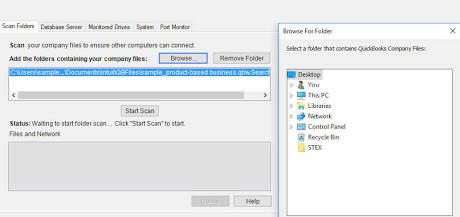
Scanning company file storage folders using the Database Server Manager utility.. Source: QuickBooks – Intuit
- Click Browse and select the exact folder directory where your company file (
.QBW) is stored. - Click the Start Scan button. Wait for the status bar to complete its cycle and display “Success.”
- Close the tool. This automatically regenerates the network configuration parameters.
Step 3: Refresh Network Identity Logs Manually
If the automatic scan does not clear the block, rebuilding the companion configuration files will establish a fresh handshake link.
- Open the file browser on the server and go to your company database folder.
- Locate the companion files that match your company file name but end with
.NDand.TLG(for example:company_file.qbw.nd). - Right-click the
.NDfile and choose Rename. Change the extension to.NDold. - Right-click the
.TLGfile and rename it to.TLGold. For a detailed analysis of these log settings, review Manual Fix: Renaming .ND and .TLG Files to Resolve 6000-Series Errors. - Re-launch QuickBooks on the workstation; the engine will create brand new communication maps automatically.
Hard Stop: When to Call an Expert
If you complete these steps and still receive Error 6000, -82, or if your Windows Network Sharing properties menu throws an “Access Denied” warning when you try to change permissions, stop. This indicates deep operating system security policy corruption or active Windows domain controller blocks. Further manual adjustments without proper administrative network tools can drop your entire network server offline.
Professional Intervention: What a ProAdvisor Will Do
A specialized network technician or system consultant will use diagnostic tools to trace data packets across your switches. They will inspect group policy settings, verify that Windows firewall inbound rules match specific port allocations, and use advanced tools to resolve deep connectivity failures. For severe systemic issues, they may deploy automated repair systems as detailed in File Doctor Guide: Using QuickBooks File Doctor to Repair Severe Corruption.
Estimated Professional Repair Costs
- Workstation Hosting Optimization & Network Tuning: $150 to $350 (Covers workstation configuration, network identity file rebuilds, and standard multi-user testing).
- Server Domain & Group Policy Reconstruction: $450 to $850 (Required when server active directory settings or advanced firewall environments block software traffic).
Related Error Clusters & Technical Silos
Multi-user connectivity problems often trace back to systemic environment configurations. If your network continues to drop connection links intermittently after clearing the initial error, cross-reference your environment setup parameters with the master guide rules in QuickBooks Data Recovery & File Corruption: The Master Diagnostic Guide.
Closing the Books
Fixing QuickBooks Error 6000, -82 is all about aligning your network so that only one computer manages data hosting. By turning off local workstation hosting and refreshing your server logs, you open up the path for smooth, multi-user access. Keep your server software updated, maintain clean directory permissions, and your office accounting workflow will run without interruption.